Chevy Silverado Radio Reset: Fix Frozen Screen in Minutes

The correct Silverado radio reset depends on the model year and infotainment system. A frozen 2016 MyLink screen should not automatically get the same reset procedure as a 2024 Silverado with Google built-in.
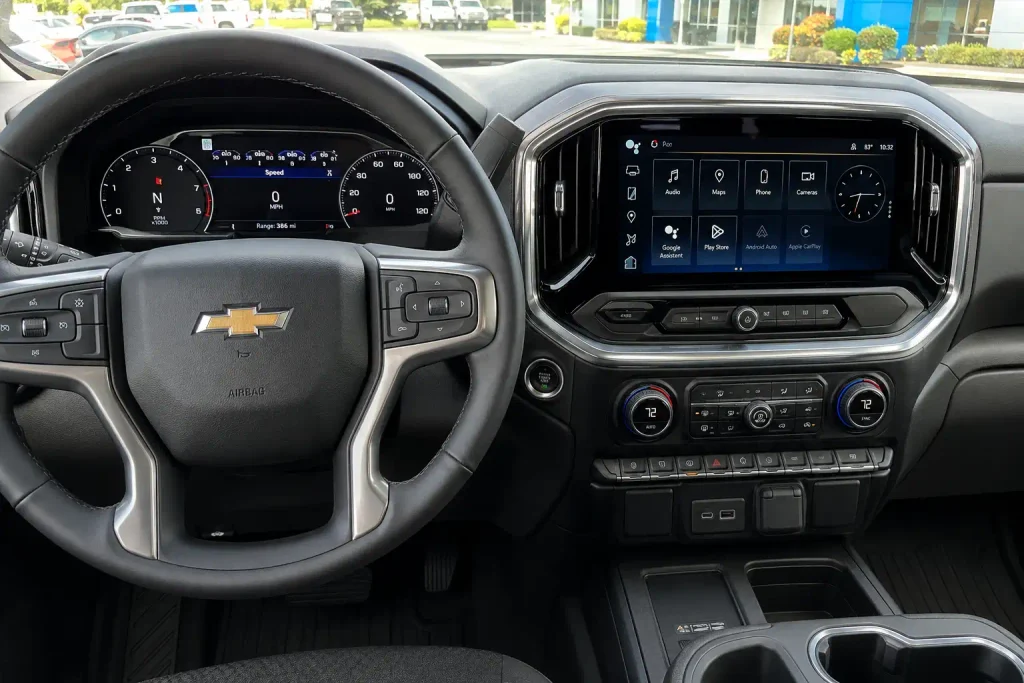
Start with the least destructive option. Reboot the infotainment system or let the truck complete a full shutdown cycle before erasing settings, pulling fuses, or disconnecting the battery.


The key is identifying which radio is installed, especially on 2022 trucks where Chevrolet changed the Silverado 1500 infotainment hardware.
Identify Your System Before Resetting the Radio


Chevrolet Silverado reset procedures change by infotainment generation. Start with the least destructive fix and only move to stronger reset options if the problem remains.
Chevrolet MyLink
Older touchscreen system with physical controls and separate factory settings for radio preferences and private data.
Start With Settings ResetInfotainment 3
Newer interface with software updates, phone integration, user settings, and stronger factory-reset options.
Restart Before Erasing DataTransition Model Year
Silverado 1500 LTD can retain the previous system while refreshed trucks may use newer Google built-in hardware.
Identify System FirstGoogle Built In
Equipped trucks may include native Google Maps, Assistant, Play, user profiles, and newer infotainment software.
Use Documented RebootSafest Silverado Radio Reset Order
Identify the System
Confirm MyLink, Infotainment 3, or Google built-in before using a reset method.
Soft Reboot
Restart the infotainment software without intentionally deleting stored personal data.
Full Shutdown
Turn the truck off and allow the radio modules to complete a full sleep cycle.
Check Connections
Re-pair Bluetooth or CarPlay and check available infotainment software updates.
Factory Reset
Reset settings or erase personal information only when simpler fixes do not solve the fault.
Diagnose the Fault
Repeated black screens, reboot loops, or dead displays may require software or electrical diagnosis.
Which Silverado Radio System Do You Have


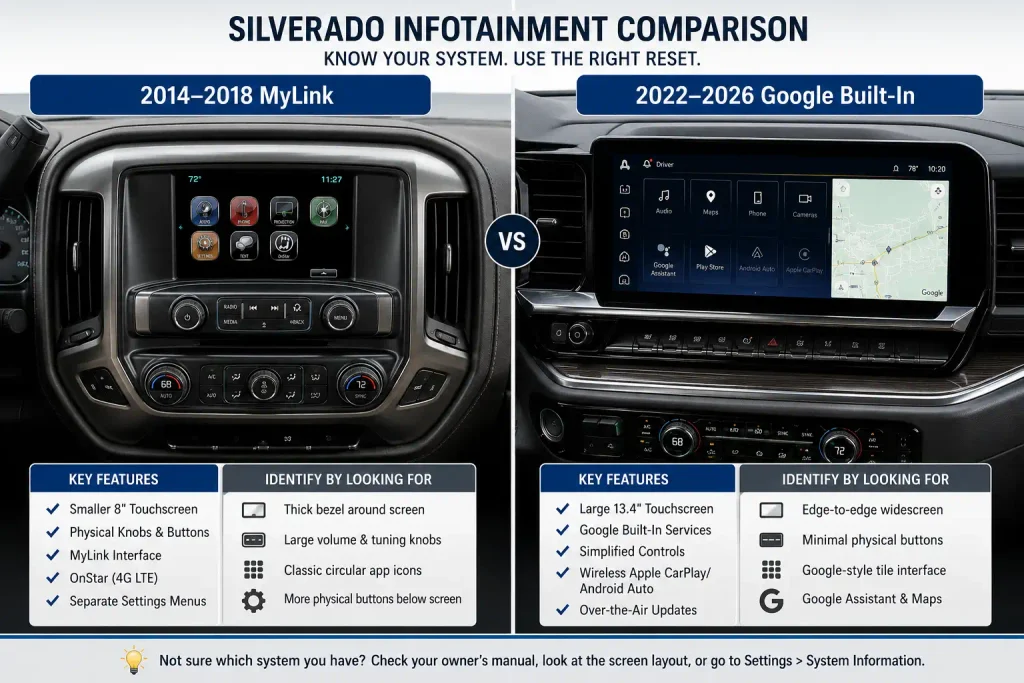
Identify the radio before trying a button combination or factory reset.
| Silverado Model Years | Common Infotainment System | What to Look For | Best Starting Point |
|---|---|---|---|
| 2014 to 2018 | Chevrolet MyLink family | Older touchscreen and physical controls | Shutdown cycle, then radio settings reset |
| 2019 to 2021 | Chevrolet Infotainment 3 family | Newer Home screen and user settings | Restart, software check, then factory settings |
| 2022 Silverado 1500 LTD | Previous-generation configuration | Interior resembles 2021 truck | Follow installed radio system |
| Refreshed 2022 Silverado 1500 | Infotainment 3 Premium on equipped trucks | Google Maps, Assistant, Play | Google built-in reboot |
| 2023 to 2026 Silverado 1500 | Google built-in on applicable configurations | Google services integrated into display | Google built-in reboot |
| 2024 to 2026 Silverado HD | Newer infotainment on applicable configurations | Large center display and newer interface | Identify RPO and system first |
GM TechLink identifies the refreshed 2022 Silverado 1500 as one of the vehicles using Infotainment 3 Premium RPO IOK with Google built-in compatibility. Google Assistant, Google Maps, and Google Play are the easiest visual clues on equipped trucks.
Identify Older MyLink Controls
2014 to 2018 Silverado trucks generally use the earlier MyLink-era interface. Menu wording varies by equipment, so use the truck’s actual Settings screen rather than assuming every trim has identical options.


A 2017 Silverado owner’s manual, for example, lists separate options for restoring vehicle settings, clearing private information, and restoring radio settings.
Identify Infotainment 3
The redesigned 2019 Silverado 1500 introduced a newer infotainment architecture. By 2021, the system could include user profiles, software information, apps, smartphone integration, and more detailed factory-reset controls.
Identify Google Built In


If the Silverado has native Google Maps, Google Assistant, and Google Play without needing Android Auto, it has Google built-in capability.


This distinction matters because Chevrolet publishes a dedicated center-display reboot procedure for Google built-in systems.
If you are also evaluating a used truck and want broader model-year context, see our best years for Chevrolet Silverado 1500 guide.
How to Soft Reset a Silverado Radio First


A soft reboot should be your first Silverado radio reset when the system is frozen, slow, or temporarily unresponsive.
It restarts the infotainment software without intentionally deleting paired phones, saved stations, profiles, or other personal settings.
Reboot Google Built In
For a Silverado equipped with Google built-in:
- Shift the truck into Park.
- Press and hold the End Call button on the steering wheel.
- Continue holding it for about 20 seconds.
- A service screen may briefly appear.
- Do not select anything on that screen.
- Continue holding the button until the center display turns off.
- Allow the infotainment system to restart.
- Test the radio, audio, Bluetooth, navigation, or other failed function.
Chevrolet’s current Google built-in troubleshooting instructions specify this approximately 20-second procedure.
Chevrolet also publishes a 10-second End Call radio reboot within its Wi-Fi hotspot troubleshooting instructions. Because Chevrolet’s Google built-in page gives the more specific 20-second procedure for that system, use the Google built-in instructions when your Silverado has that radio.



Try a Full Shutdown Cycle
If the radio does not need a factory reset, a full vehicle sleep cycle can clear some connection problems.
- Turn the Silverado off.
- Open and close the driver door.
- Leave the truck off long enough for the infotainment modules to shut down.
- Restart the truck.
- Allow the system to boot fully.
- Test the problem again.
For Bluetooth re-pairing, Chevrolet specifically instructs owners to shut the vehicle off, open and close the door, wait about two minutes, and then reconnect the phone.
If the reboot fixes the problem, stop there. There is no reason to erase the radio’s stored data.
How to Reset 2014 to 2018 Silverado MyLink


Older Silverado MyLink radios provide separate reset options rather than treating every reset as the same operation.
The verified approach is to use the factory settings menu available on your particular radio.
Restore Radio Settings
On a documented 2017 Silverado configuration:
- Open Settings.
- Select Return to Factory Settings.
- Select Restore Radio Settings.
- Confirm the reset when prompted.
Chevrolet states that this option returns personalized radio settings to their factory values.
Use this when radio preferences or configuration appear corrupted. It is different from erasing all personal information.
Clear Private Data


![ACANII - For Black Smoke 1999-2002 Chevy Silverado GMC Sierra [C-Shape] LED…](https://m.media-amazon.com/images/I/41vfcWm+pPL._SS500_.jpg)
The same MyLink system provides a separate Clear All Private Data option.
Use it when:
- selling or trading the Silverado,
- removing stored personal information,
- clearing stored devices and related data,
- troubleshooting a persistent profile or pairing problem after simpler steps fail.
Do not use this as the first response to a temporary frozen screen.
Calibrate the Touchscreen
Some older Silverado configurations also include Calibrate Touchscreen under display settings.
This can help when the screen is visible and operating but touches register in the wrong location. The 2017 Silverado manual documents this calibration function.
You may see online instructions claiming that holding Home and Fast Forward resets every MyLink-equipped Silverado. I could not verify that as a universal Silverado procedure in Chevrolet’s primary documentation, so this guide does not recommend it across all 2014 to 2018 trucks.
How to Reset 2019 to 2021 Silverado Infotainment 3


For 2019 to 2021 Silverado 1500 trucks, start by restarting the truck and letting the infotainment system shut down before erasing user data.
If the problem involves Bluetooth, Apple CarPlay, or a paired phone, troubleshoot that connection separately first.
Check the Vehicle Software
On supported Chevrolet systems, check:
Settings > System > Vehicle Software > Updates
Chevrolet recommends checking both the phone software and vehicle infotainment software when Bluetooth problems occur.
Software updates can correct faults without deleting user profiles.
Reset Vehicle Settings
The 2021 Silverado owner’s manual lists Return to Factory Settings within the infotainment settings.
One available option is Reset Vehicle Settings, which resets the current user’s vehicle settings.
Use this only when resetting those settings is actually part of the problem.
Erase Settings and Personal Data


The stronger option is Erase Settings and Personal Data.
According to Chevrolet’s 2021 Silverado manual, this can erase:
- app data settings,
- user profiles,
- personal information,
- navigation data,
- mobile-device data.
Do not choose this option just because the radio froze once.
How to Reset 2022 to 2026 Silverado Google Built In
The refreshed Silverado infotainment system behaves differently from earlier MyLink radios.
GM identifies RPO IOK as the Infotainment 3 Premium system with Google built-in on the refreshed 2022 Silverado 1500.
Use the Google Built In Reboot
If your Silverado has Google built-in:
- Put the truck in Park.
- Press and hold the steering-wheel End Call button.
- Keep holding for approximately 20 seconds.
- Ignore the temporary service screen if it appears.
- Release only after the center display turns off.
- Allow the system to restart.
Chevrolet describes this as a way to reboot the center display without shutting off the vehicle.
Check for Available Updates
Software faults can mimic hardware failure.
Chevrolet says equipped vehicles can check for updates from the Settings app. Updates download in the background and may require the truck to be parked and turned off during installation.
For 2023 and 2024 Silverado 1500 trucks with IOK, GM bulletin 24-NA-117 documented radio software version Y172 and listed fixes for multiple problems, including audio loss, blank audio screens, unresponsive volume controls, and other software-related behavior.
Do not assume a failing radio needs replacement before checking the installed software version.
What Does a Silverado Factory Reset Erase
A factory reset is not the same as restarting the Silverado radio.
The exact options depend on the radio generation.
| Reset Type | Restarts System | Usually Keeps Personal Data | Can Remove Pairings | Best Use |
|---|---|---|---|---|
| Infotainment reboot | Yes | Yes | Normally no | Frozen or slow system |
| Vehicle shutdown cycle | Yes | Yes | Normally no | Temporary connection fault |
| Restore radio settings | Not primarily a reboot | Mostly | May vary | Incorrect radio preferences |
| Reset vehicle settings | No | Depends on generation | May vary | User-setting problems |
| Clear private data | No | No | Yes | Selling truck or clearing stored data |
| Erase settings and personal data | No | No | Yes | Persistent profile or data corruption |
Older MyLink documentation separates Restore Radio Settings from Clear All Private Data.
The 2021 Silverado system similarly separates Reset Vehicle Settings from Erase Settings and Personal Data, with the latter deleting profiles, app information, navigation data, and mobile-device information.
Use the smallest reset that matches the problem.
How to Fix a Silverado Black Screen After Reset
If a verified radio reboot does not restore the screen, stop repeating the same reset.
The symptom itself can help narrow the next check.
Black Screen With Audio
If audio continues playing while the center display remains black, the radio is receiving at least some power.
Try the correct infotainment reboot and then check for software updates. A persistent screen failure needs further diagnosis rather than repeated factory resets.
Black Screen With No Audio
If the display and audio are both completely dead, check the truck’s exact owner-manual fuse information and electrical supply before assuming the touchscreen itself failed.
Do not use a universal Silverado radio fuse number. Fuse assignments and module layouts can change with model year, trim, radio RPO, and electrical configuration.
Repeated Black Screens on IOK Radios
GM issued bulletin PIT6076C in May 2025 concerning intermittent but frequent black screens on IOK-equipped radios.
The bulletin covers the refreshed 2022 Silverado 1500, 2023 to 2025 Silverado 1500, and 2024 to 2025 Silverado HD among other GM models. GM instructs technicians to verify the radio software version when repeated black screens occur.
That means a recurring black screen on an affected IOK truck may require software-level diagnosis rather than another factory reset.
Bluetooth or CarPlay Only Fails
If the radio itself works but the phone connection does not, avoid resetting the entire infotainment system first.
Chevrolet recommends deleting the phone from the truck, forgetting the truck on the phone, turning the vehicle off, opening and closing the door, waiting, and then pairing again.
Treat a connection fault as a connection fault until evidence points to the radio.
When Does a Silverado Radio Need Dealer Diagnosis
A reset is a software recovery step. It cannot fix every display, wiring, power, or module problem.
Consider dealer or qualified diagnostic service when:
- the center display repeatedly goes black,
- the radio constantly restarts,
- audio disappears after every ignition cycle,
- an infotainment update repeatedly fails,
- the screen remains dead after verified power checks,
- several infotainment functions fail at the same time,
- a factory reset changes nothing,
- the problem matches an applicable GM software bulletin.
GM’s 24-NA-117 bulletin shows why software version matters. For affected IOK-equipped 2023 to 2024 Silverado 1500 and 2024 Silverado HD trucks, GM released updated radio software covering multiple radio-related faults.
For intermittent black screens, GM’s 2025 PIT6076C bulletin likewise directs technicians toward software-version verification on affected IOK trucks.
A scan for stored diagnostic trouble codes and a software-version check can be more useful than repeatedly disconnecting power.
Which Silverado Radio Reset Should You Use
Choose the reset according to the symptom.
| Silverado Radio Problem | First Step | Next Step | Avoid as First Step |
|---|---|---|---|
| Frozen Google built-in screen | End Call reboot | Full shutdown cycle | Factory reset |
| MyLink settings incorrect | Restart truck | Restore radio settings | Battery disconnect |
| Bluetooth will not connect | Restart and re-pair phone | Check updates | Erase all data |
| Apple CarPlay will not connect | Reconnect phone | Restart infotainment | Pull radio fuse |
| Wrong user settings | Reset relevant settings | Factory reset if necessary | Disconnect battery |
| Repeated black screen | Correct reboot | Check software and diagnostics | Repeated resets |
| Radio completely dead | Verify power and correct fuse data | Electrical diagnosis | Random fuse pulling |
| Selling the Silverado | Clear personal data | Verify profiles are removed | Simple reboot only |
For most temporary software problems, the order should be:
Reboot > full shutdown > connection or software check > targeted settings reset > factory reset > diagnostic service
This protects stored information while giving the simplest fixes a chance to work first.
Best Silverado Radio Reset Starting Point
The best Silverado radio reset starts with identifying the installed infotainment system.
Older MyLink trucks use different factory-setting options from later Infotainment 3 and Google built-in systems. On a Google built-in Silverado, Chevrolet’s current procedure is to place the truck in Park and hold the End Call button for about 20 seconds until the center display shuts down.
Do not erase personal data, disconnect the battery, or pull random fuses when a normal reboot can solve the problem.
If the radio keeps rebooting or the screen repeatedly turns black after a verified reset, check software status and applicable GM service information before replacing parts.
5 Common Silverado Radio Reset Questions
Does Resetting a Silverado Radio Delete Bluetooth Devices
A normal infotainment reboot should not intentionally erase paired devices. A factory option such as Clear All Private Data or Erase Settings and Personal Data can remove phone and profile information, so check the selected reset type before confirming it.
How Do I Reboot a Frozen Silverado Touchscreen
On a Silverado equipped with Google built-in, put the truck in Park and hold the steering-wheel End Call button for about 20 seconds until the center display turns off. Chevrolet says a service screen may briefly appear during this process.
Why Is My Silverado Radio Screen Black
A temporary software freeze can cause a black screen, but repeated black screens can require software or hardware diagnosis. GM bulletin PIT6076C specifically covers frequent black screens on certain 2022 to 2025 Silverado models equipped with IOK.
Should I Disconnect the Silverado Battery to Reset the Radio
Battery disconnection should not be the first reset method when the installed infotainment system has a documented software reboot procedure. Start with the proper radio reboot, shutdown cycle, connection troubleshooting, and software check before interrupting vehicle power.
How Do I Factory Reset a Silverado Before Selling It
Use the radio’s factory-settings menu to remove stored personal information rather than performing only a reboot. Depending on the generation, Chevrolet labels this function Clear All Private Data or Erase Settings and Personal Data.