How to Turn On GMC Sierra Head-Up Display in 2026

Learning how to turn on heads up display GMC Sierra trucks is a two minute job once you know where the controls sit. The brightness switch left of the steering wheel turns the display on, and the touchscreen Settings menu gives you a second way in.


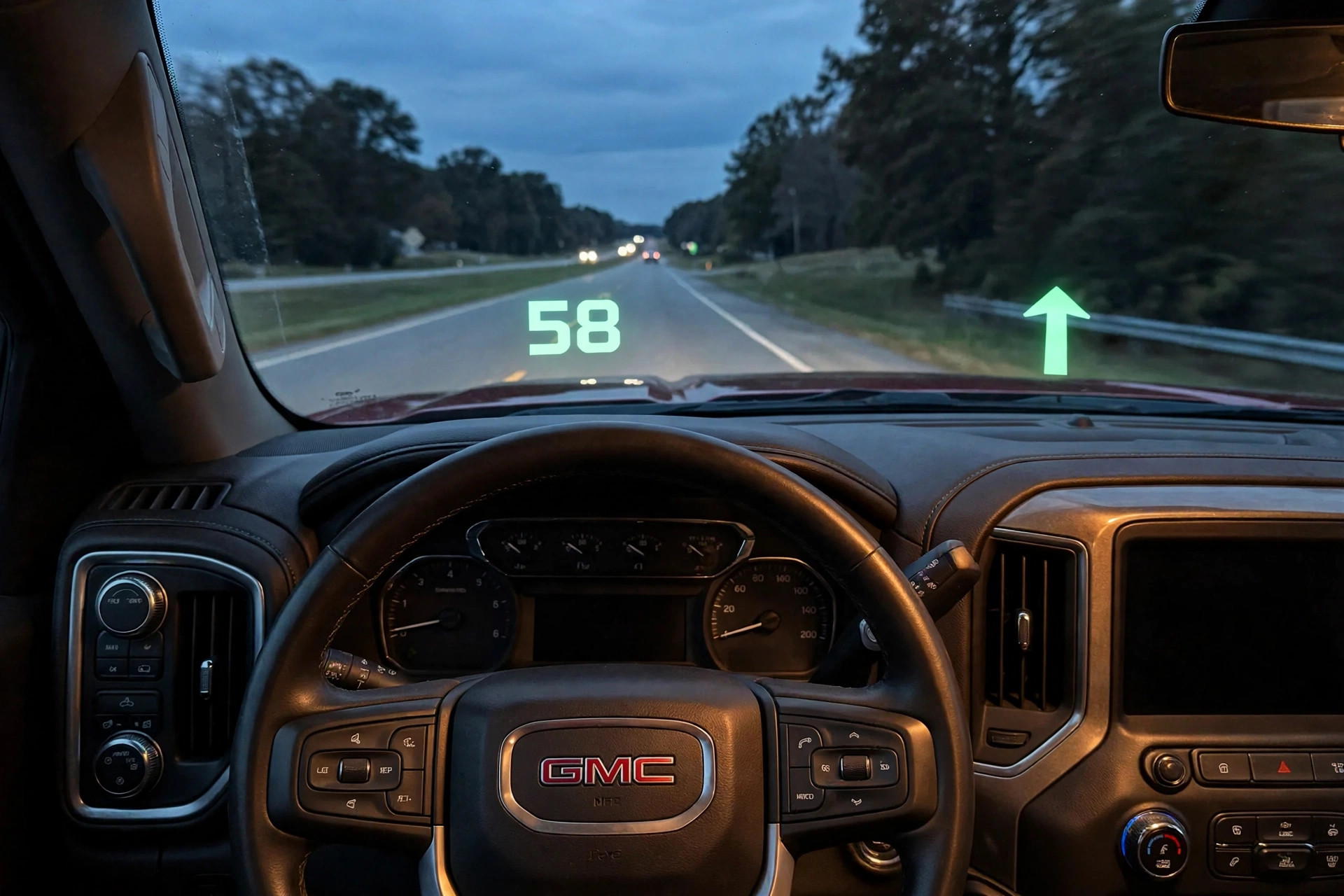
The head-up display, or HUD, projects speed, navigation, and safety alerts onto the windshield in front of you. You read it without looking down at the cluster.
This guide covers the exact steps for 2019 and newer Sierra 1500 trucks, plus brightness and position setup, the four display views, and the fixes when the HUD will not turn on.
Does Your GMC Sierra Have a Head-Up Display


Not every Sierra has a HUD. GMC fits it as optional equipment, most often on Denali, AT4, AT4X, and Denali Ultimate trims. Check before you hunt for the controls.
The multicolor HUD came to the Sierra 1500 with the 2019 redesign, and it has stayed in the lineup since. Trucks from 2018 and older do not have a factory HUD, so no menu or switch will turn one on.
Three quick checks confirm whether your truck has the feature. The table below shows what to look for.
| What to Check | Where to Look | What It Means |
|---|---|---|
| Projector opening | Top of the dashboard, near the windshield | A small dark opening means the projector is fitted |
| Settings menu | Center display, Settings, then Display | A Head-Up Display entry means the truck has the feature |
| Window sticker or RPO list | Original window sticker or glove box label | Head-Up Display listed under options confirms it |
If none of these checks turn up a HUD, your truck was not built with one. The Auto Insider guide to the GMC Sierra head-up display lists the same Denali and AT4 trims as the usual home for the feature.
Your Sierra projects the HUD straight onto the windshield. It does not use a pop-up combiner screen, so there is no panel to raise before you start.
How to Turn On Your Sierra HUD in 5 Steps
Use the physical controls first. They work on every equipped Sierra, and they are faster than the touchscreen.
Adjust Your Seat and Start the Engine
Set the driver seat to your normal driving position first. The HUD image sits in a fixed spot on the windshield, so a seat change after setup moves it out of view.
Start the engine. The HUD needs the ignition on, and the image will not appear with the truck fully off.
Lift the Brightness Switch


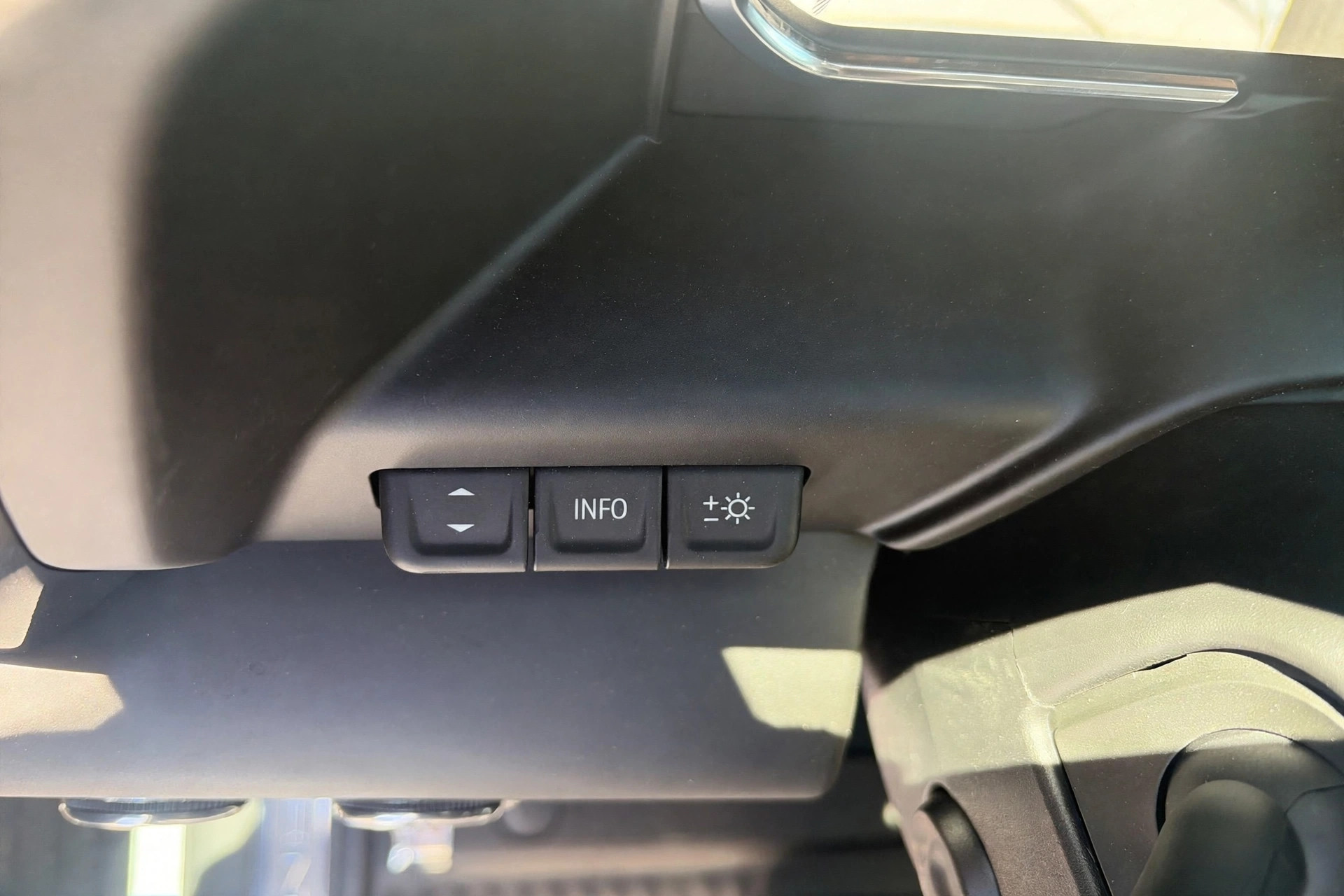
Find the HUD controls on the left side of the instrument panel, beside the steering wheel. Lift the brightness switch up to brighten the display and turn it on.
Keep lifting until the image appears on the windshield. If the display was turned fully down, it may take a few lifts before the image shows.
Use the Touchscreen Settings Menu
Some Sierra trucks also switch the HUD on from the center display. Tap the Settings app icon on the touchscreen, then tap Display, then Head-Up Display.
Toggle the feature on from that menu. The GMC support page for the head-up display gives the same Settings, Display, Head-Up Display path for turning the HUD on or off.
If your truck has no Head-Up Display entry in the menu, it is not equipped. Go back to the checks in the first section before you spend more time on it.
Center the Image on the Windshield
Use the position switch to move the image up or down until it sits low in your field of vision, just above the hood line. The image moves up and down only. It cannot move side to side.
Keep the image as low as you can while still reading it at a glance. A high image forces your eyes up from the road.
Pick a View With the INFO Button
Press the INFO switch to cycle through the four display views. Each press changes the view, so press it until you see the layout you want.
The 2020 GMC Sierra quick reference guide lists the same controls on the left side of the instrument panel: position, INFO, and brightness.
Adjust the driver seat. Start the engine.
Lift the brightness switch to turn the HUD on.
Or use Settings, Display, then Head-Up Display.
Move the image up or down until it sits low in your view.
Press INFO to pick a view. Speed View is the simplest.
How to Adjust HUD Brightness and Position
The HUD adjusts with three switches on the left of the instrument panel. Learn what each one does and you can set it once and leave it alone.
| Control | Action | Result |
|---|---|---|
| Position switch | Lift up or press down | Moves the image up or down on the windshield |
| INFO switch | Press once per view | Cycles Speed, Active Safety, Navigation, Off-Road |
| Brightness switch | Lift up to brighten, press down to dim | Changes image brightness, hold down to turn off |
Set the Right Brightness


Lift the brightness switch up to brighten the image or press it down to dim it. The HUD also dims and brightens on its own to match outside light, so set it for daylight and let it adjust after dark.
Hold the brightness switch down to turn the display off. Lift it again to bring the image back.
Move the Image Up or Down
Use the position switch to raise or lower the image. Small moves work best, since a large shift can push the image out of your line of sight.
Re-check the position after anyone else drives the truck. A different seat position changes where the image lands on the windshield.
Fix a Slanted Image With Rotation
Some trucks let you fix a slanted HUD image from the instrument cluster Options menu. Scroll to Adjust Rotation, press the thumbwheel to enter adjust mode, scroll to level the image, then press the thumbwheel again to save.
This feature may only work while the truck is in Park. Our guide to the GMC Sierra tire pressure sensor reset shows the same steering wheel thumbwheel and DIC controls in action.
Change the Speed Limit Style
The Options menu also holds the Speed Limit Style setting. Press the thumbwheel while Speed Limit Style is highlighted to switch between a speed limit sign and a speed limit bar, or to turn the speed limit display off.
Turn it off if the sign distracts you in town. The speed readout stays on in every view.
What the 4 Sierra HUD Views Show
Each INFO press changes what the HUD shows. All four views keep the speed front and center, and each one adds a different layer of information.
| View | What It Shows | Best For |
|---|---|---|
| Speed View | Speedometer only | Daily driving with no clutter |
| Active Safety View | Speed plus driver assistance alerts | Highway driving with cruise control |
| Navigation View | Speed plus turn-by-turn directions | Driving an unfamiliar route |
| Off-Road View | Speed plus pitch, steering, and rolling angle | Trail driving and steep grades |
The HUD can also flash temporary information, such as an audio change, a phone call, or a navigation prompt. Vehicle messages and alerts can appear there too, and some can be cleared with the steering wheel controls.
The 2025 GMC Sierra quick reference guide lists the same four views for the Sierra HD trucks, which share the HUD system with the 1500.
Speed View is the right default for most drivers. Switch to Navigation View before a trip and back to Speed View when you know the roads.
5 Reasons Your Sierra HUD Will Not Turn On
A HUD that stays dark usually has a simple cause. Work through these five checks before you book a service visit.
Your Truck Does Not Have HUD
This is the most common cause. If the Settings menu has no Head-Up Display entry and the dash has no projector opening, the truck was built without the feature.
No software update adds a factory HUD to a truck that lacks the projector. Aftermarket HUD units exist, but they are a different product with their own install.
Brightness Is Turned All the Way Down
Holding the brightness switch down turns the HUD off. If the last driver turned it down, the display looks dead.
Lift the brightness switch up several times and watch the windshield. The image fades in as the brightness rises.
Polarized Sunglasses Hide the Image
Polarized sunglasses can make the HUD image hard to see or hide it completely. This is normal for a projected display.
Take the sunglasses off for a moment to test. If the image appears, the glasses are the cause, not the truck.
Sunlight Hits the Display at an Angle
Sunlight at a sharp angle can make the HUD image light up or wash out. The manual notes this effect and calls it normal.
It passes as the sun moves or the truck turns. Do not adjust the brightness to chase a sun glare that will clear on its own.
The Windshield or Projector Is Dirty
A dirty windshield scatters the projected image, and dust on the projector opening dims it. Clean the inside of the windshield and wipe the projector opening with a soft, dry cloth.
If the touchscreen is frozen and the Settings menu will not open, our guide to resetting the GMC Sierra radio covers the infotainment reboot steps first.
Your Sierra HUD Setup in 30 Seconds
Turning on the heads up display in your GMC Sierra takes three moves: start the engine, lift the brightness switch, and center the image with the position switch. Pick a view with INFO and the setup is done.
Set the brightness for daylight and let the auto dimming handle the night. Keep the image low in your view and use Speed View for daily driving. A set HUD keeps your eyes on the road instead of the cluster.
If the display stays dark, check the brightness switch first, then the sunglasses, then the equipment list. Most HUD problems end at one of those three checks.
5 Questions About Sierra Head-Up Displays
Can I turn on the GMC Sierra head-up display from the touchscreen?
Yes, on trucks with the infotainment menu. Tap Settings, then Display, then Head-Up Display, and toggle it on. The physical brightness switch works on every equipped truck and is faster.
Which GMC Sierra trims have a head-up display?
The HUD is optional equipment, most often on Denali, AT4, AT4X, and Denali Ultimate trims. Check the projector opening on the dash or the Settings menu to confirm your truck has it.
How do I make the Sierra HUD image brighter?
Lift the brightness switch up on the left of the instrument panel. The HUD also dims and brightens on its own to match outside light. Hold the switch down to turn the display off.
Can I rotate the Sierra HUD image if it looks slanted?
Yes, on trucks with the rotation option. Open the instrument cluster Options menu, scroll to Adjust Rotation, and use the thumbwheel to level the image. This may only work while the truck is in Park.
Can I use the same steps on a Chevy Silverado?
The Silverado shares the GM infotainment and DIC layout, so the Settings path matches. Our Silverado TPMS reset guide shows the same DIC thumbwheel controls used on the shared platform.