Ram 1500 Uconnect Not Connecting to Phone? 2026 Fixes by Symptom

If your Ram 1500 Uconnect is not connecting to your phone, start by checking where the connection fails. A phone that cannot find the truck needs a different fix from one that pairs successfully but will not launch Apple CarPlay or Android Auto.
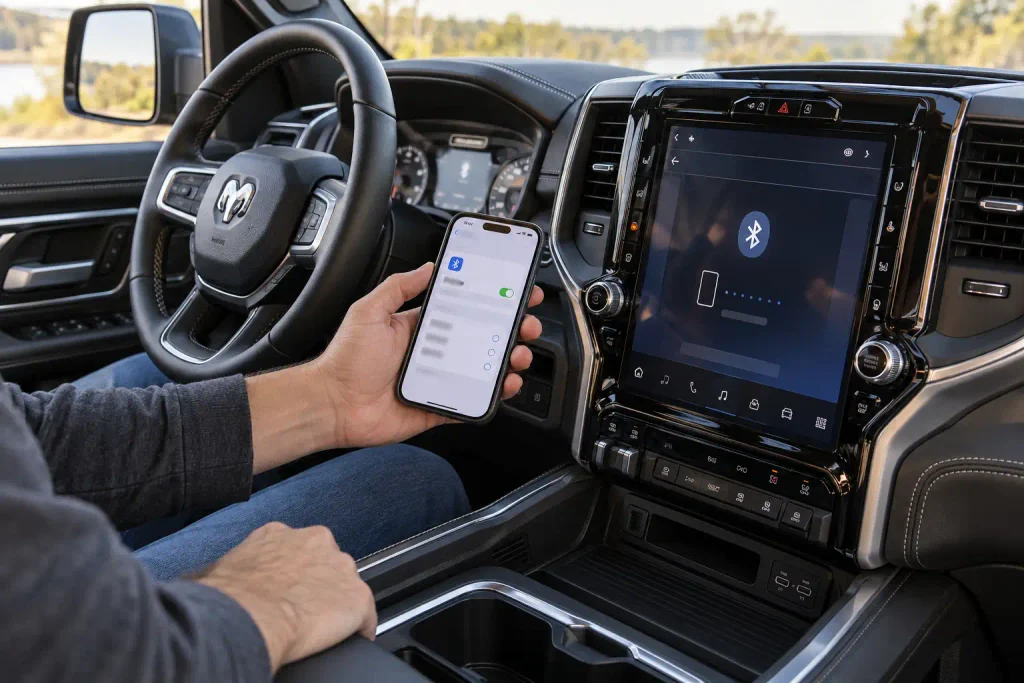
For a broken Bluetooth pairing, the most reliable first step is to remove the old connection from both Uconnect and the phone, then pair again. That is the procedure Mopar recommends for restoring lost pairings. Before deleting anything, use the symptom checks below to avoid unnecessary resets or lost settings.
TruckGuider · Ram 1500 Troubleshooting
Uconnect Won’t Connect to Your Phone?
Find the exact connection symptom before resetting anything. Bluetooth pairing, reconnection, and smartphone projection require different checks.
Park the truck. Turn on phone Bluetooth. Open your radio’s Phone or pairing settings. Menus vary by Uconnect version.
Phone Cannot Find Uconnect
Uconnect Appears, but PIN Fails
Paired, but Not Connected
Calls Work, but CarPlay Is Missing
Android Auto Won’t Launch by USB
Connection Stopped After an Update
✓ Retest the Right Feature
Test Bluetooth calls or audio first. Then check CarPlay or Android Auto separately, if supported by your radio.
! When Two Phones Still Fail
Test two compatible phones separately. If both fail the same way, check radio-specific software guidance and seek service diagnosis.
These are initial diagnostic checks, not guaranteed repairs. Avoid unverified reset-button combinations or a factory reset as your first response.
Why Is My Ram 1500 Uconnect Not Connecting to Phone
Recommended Best Deal Products


The first clue is what happens when you open the Phone screen or Bluetooth settings. Identify which description matches your truck:
- Uconnect never appears on your phone: The radio might not be in pairing mode, or the phone might not be scanning for new devices.
- Uconnect appears, but pairing fails: A saved connection or an unconfirmed pairing request may be blocking setup.
- The phone is paired but will not reconnect: The radio could be selecting a different saved phone, or the previous connection needs to be refreshed.
- Bluetooth calls work, but CarPlay or Android Auto does not: The problem is with smartphone projection, not necessarily Bluetooth pairing.
- The Phone screen is unavailable or unresponsive: Diagnose the radio interface before repeatedly pairing the phone.
If the display specifically says Phone Not Available, follow the dedicated Uconnect Phone Not Available troubleshooting guide.
If the Phone screen responds normally, move to the initial pairing checks.
How to Reconnect a Ram 1500 Phone Safely
Park the truck and keep the ignition in the position specified by your radio’s owner’s guide. The 2025 Ram 1500 Quick Start Guide, for example, directs owners to pair phones with the vehicle in ACC or ON/RUN.
- Turn Bluetooth on. Open Bluetooth settings on your iPhone or Android phone. Make sure it is not still trying to connect to another nearby device.
- Open the truck’s phone settings. On a 2025 Ram 1500 covered by the official Quick Start Guide, choose Phone > Device Manager. Older systems may use Phone > Settings > Paired Phones instead.
- Delete the old connection if one exists. Remove the saved phone from Uconnect. On the phone, find the saved Uconnect entry in Bluetooth settings and choose Forget, Unpair, or the equivalent option.
- Start a fresh pairing. In the 2025 Device Manager interface, select Add Device. On older radios, use the corresponding Add Device or pairing option.
- Confirm the request. Select Uconnect from the phone’s discovered devices and approve the matching passkey or pairing request on both screens.
- Test what actually works. First check a hands-free call or Bluetooth audio. Then test CarPlay or Android Auto separately if your truck supports it.
Expected result: Uconnect lists the phone as connected, and an actual call or audio test works. A phone listed as paired but not connected has not passed this check.
Do not factory-reset the radio or your phone just to renew a Bluetooth pairing. If Uconnect never appears in the scan, use the next branch.
What to Do When Uconnect Cannot Find Your Phone
Recommended Best Deal Products


Work through the matching condition before changing anything else.
Check Phone Bluetooth Discovery
If the truck is absent from the available-device list, keep the phone’s Bluetooth settings open and scan again. On some Android phones, you must select Pair new device or refresh the scan to look for nearby devices.
Switch Bluetooth off and back on. If Uconnect is still absent, check the truck’s pairing screen.
Check Uconnect Pairing Mode
Open Add Device on the truck, not just its list of already paired phones. Mopar’s official guide uses Phone > Settings > Paired Phones > Add Device, or Settings > Phone/Bluetooth > Paired Phones > Add Device, on applicable older interfaces.
Expected result: The phone discovers a Uconnect entry and allows you to select it. If neither device discovers the other, try a second compatible phone to separate a phone-specific problem from a radio-side problem.
Check Failed PIN Confirmation
If Uconnect appears but pairing is rejected, begin a new request and compare the code on both displays. Accept the request before it expires. Cancel if the codes do not match.
If pairing still fails, delete any old entry on both sides and repeat the fresh-pair procedure. If it connects now but later fails automatically, follow the reconnect branch.
Why Paired Phones Fail to Reconnect on Uconnect
A saved phone is not necessarily the phone Uconnect will connect to first. Another saved phone may take priority when both are nearby.
Check the Preferred Phone
If two phones are saved, temporarily turn Bluetooth off on the phone you do not want to use. Then select the intended phone from the radio’s paired-device list and try Connect if that option is available.
Some Uconnect interfaces let you mark a phone as a favorite or preferred device. Mopar’s pairing instructions describe assigning favorite status after pairing. Use the option shown on your radio; available multi-phone functions differ by system.
Check Disabled Device Connections
If the phone displays Uconnect in its saved Bluetooth list, tap the entry and check whether it connects manually. If it does, restart and retest automatic reconnection.
If a phone update preceded the issue, remove and rebuild the saved pairing before concluding that the radio is defective. This is also consistent with the phone-pairing procedure in Ram owner’s documentation.
Check Bluetooth Calls and Audio
Make a stationary test call and select the truck as the audio output. Then play music and choose the Bluetooth audio source on Uconnect. If music remains silent, check the source or phone audio routing.
If both work, do not keep deleting Bluetooth devices. Move on to CarPlay or Android Auto settings if the smartphone screen projection is still missing.
How to Fix CarPlay and Android Auto Connections
Recommended Best Deal Products


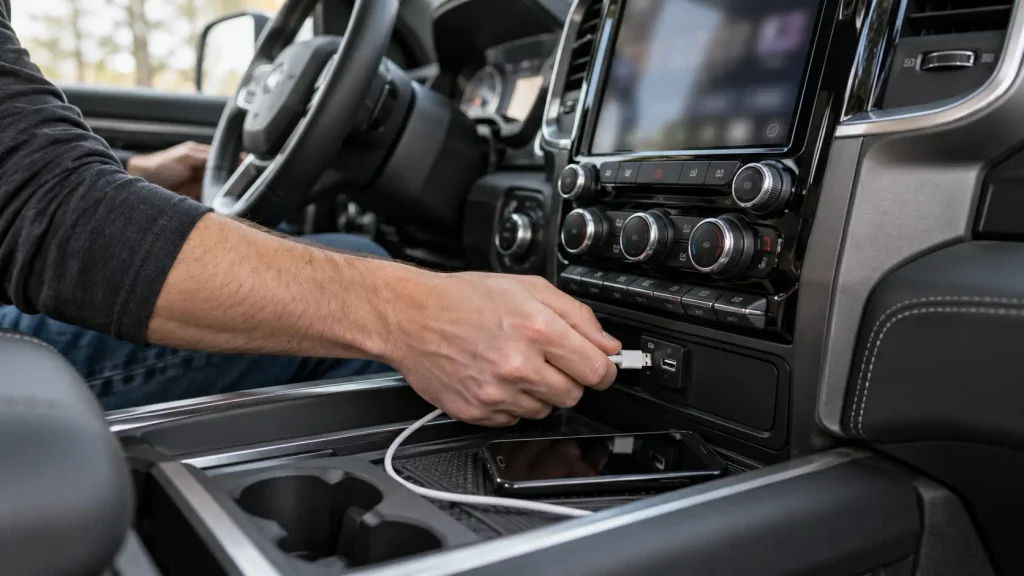
A phone may place hands-free calls while smartphone projection remains unavailable. First confirm that your particular Ram radio supports the wired or wireless mode you are trying to use.
Check iPhone CarPlay Settings
For a supported wired CarPlay setup, connect directly to a compatible media USB port with a working data cable. Try another cable or supported port if the phone charges but the CarPlay screen does not appear.
For a supported wireless setup, enable both Bluetooth and Wi-Fi. Apple also advises checking that the CarPlay network’s Auto-Join option is on. Make sure Siri is enabled and CarPlay is permitted under Settings > Screen Time > Content & Privacy Restrictions > Allowed Apps when restrictions are active.
If those checks fail, open Settings > General > CarPlay, select the truck, choose Forget This Car, and set up CarPlay again. These steps come from Apple’s official CarPlay troubleshooting instructions.
Expected result: The CarPlay interface launches on the truck’s screen. Ordinary Bluetooth audio alone does not confirm that CarPlay is working.
Check Android Auto Settings
For Android Auto, Google specifies an Android phone running Android 9.0 or later with a data plan, plus a compatible vehicle or receiver. Check that Android Auto is enabled in the radio settings and that the phone has current software.
For a wired connection, use a known data-capable cable connected directly to the appropriate media port. Google recommends a cable under 3 feet (1 meter) and avoiding USB hubs or extensions.
If Android Auto was configured for another vehicle, review Android Auto > Previously connected cars and consider Forget all cars. See Google’s Android Auto troubleshooting guide for the current phone-side path.
Check USB and Wireless Connections
A USB port supplying power does not prove that it supports smartphone data or projection. Use the media USB port identified in your Ram guide, not an arbitrary charging outlet. Remove adapters and extensions while testing.
If wireless projection is supported, test it separately from wired projection. Report which mode fails, and verify compatibility before resetting Uconnect.
How Uconnect 4 and 5 Change Phone Troubleshooting
Menu names and reset methods depend on the installed radio, not merely the truck’s model year. Do not identify radio software by screen size alone.
- Uconnect 3 with a 5-inch display: Mopar documents Settings > Phone/Bluetooth > Paired Phones for reviewing and deleting saved devices.
- Uconnect 4 and 4C: Applicable Mopar instructions use Pairing > Paired Phones and Audio Devices, with a settings control alongside the device for disconnecting or deleting it.
- Uconnect 5 on the 2025 Ram 1500 covered by the Quick Start Guide: Open Phone > Device Manager > Add Device. To remove a phone, select the gear next to it and choose Delete Device.
If your menu differs, use Mopar’s vehicle-specific pairing instructions for the exact radio.
Reboot versus factory reset: A radio reboot is not the same as deleting all personal settings. The 2025 Ram 1500 Quick Start Guide explicitly lists holding the radio power button for 15 seconds as a troubleshooting reset for the radio shown in that guide. It does not establish a universal reset method for every Uconnect generation.
For a broader explanation of reset types, see the existing Ram 1500 Uconnect reset guide. Confirm your radio’s official procedure before using any button combination. Avoid a factory reset or battery disconnection during ordinary phone-pairing diagnosis.
Which Ram 1500 Connection Symptoms Need Each Fix
Choose the first symptom that matches what you can observe. Each row points to the initial test, not a guaranteed repair.
| Symptom | First Test | Next Action |
|---|---|---|
| Phone cannot find Uconnect | Open Add Device on radio | Rescan from phone with Bluetooth enabled |
| Phone sees Uconnect, but PIN fails | Compare codes on both screens | Cancel and begin a fresh pairing request |
| Phone says paired but not connected | Manually select phone in radio | Check favorite or priority settings |
| Calls work, but CarPlay is missing | Check Siri, Wi-Fi and supported mode | Reconfigure CarPlay if needed |
| Android Auto does not launch by USB | Try correct media port and data cable | Check Android Auto settings and compatibility |
| Connection fails after phone update | Remove old pairing on both devices | Pair again and retest |
| Two compatible phones both fail | Test each phone separately | Check radio software and seek diagnosis |
If the initial test succeeds, stop changing unrelated settings. If the same failure remains after the matching branch, determine whether it follows one phone or the truck itself.
When Ram 1500 Uconnect Needs Professional Diagnosis
A service diagnosis becomes reasonable when two compatible phones fail in the same way, the radio’s Phone menu repeatedly freezes, or properly documented pairing and restart steps do not restore the connection. They do not prove a failed radio module.
Before booking service, record the truck’s model year, radio version, phone model, phone operating system, and exact failure message. Also note whether Bluetooth calling, USB projection, and wireless projection were tested separately.
Use your truck’s owner documentation to confirm any software-update method, and ask an authorized Ram dealer to check for applicable updates or service information by VIN. If the radio still works normally but only one phone fails, resolve that phone’s compatibility or software issue before authorizing radio replacement.
Which Ram 1500 Phone Connection Fix Comes First
When a Ram 1500 Uconnect is not connecting to a phone, begin with the point where the connection stops. If the phone cannot discover the radio, check pairing mode. If it is already saved but will not reconnect, remove the pairing from both devices and start again. That sequence follows Mopar’s published pairing guidance and avoids unnecessary changes to the truck.
If Bluetooth calls work, diagnose Apple CarPlay or Android Auto as a separate function. Check phone settings, supported connection mode, and the correct media USB port before assuming a hardware fault.
Use only the reset instructions written for your installed Uconnect radio. When multiple compatible phones fail after those checks, document the symptoms and seek model-specific service diagnosis.
5 Common Ram 1500 Uconnect Phone Connection Questions
Why Won’t My Ram 1500 Uconnect Connect to My iPhone?
The cause may be an old Bluetooth pairing, a disabled connection, or CarPlay settings, depending on what fails. First check whether hands-free calling works. If only CarPlay fails, follow Apple’s Wi-Fi, Siri, restrictions and Forget This Car checks rather than repeatedly resetting Bluetooth.
Why Is My Phone Paired but Not Connected to Uconnect?
A paired device is saved, but it may not be the radio’s active phone. Select it from the paired-device list and check whether another favorite or higher-priority phone is connecting instead. If manual connection also fails, delete the saved pairing on both devices and pair again.
How Do I Reset Bluetooth Pairing on My Ram 1500?
Delete the phone from Uconnect’s paired-device list and remove Uconnect from the phone’s Bluetooth settings. Then return to Add Device, confirm the matching pairing request, and test a call. This resets the pairing, not the radio.
Why Does Apple CarPlay Not Work When Bluetooth Is Connected?
Bluetooth calling and CarPlay use different connection requirements, so a successful call does not confirm that projection is working. Verify that your radio supports the intended CarPlay mode, then check Siri, Wi-Fi for wireless CarPlay, and the supported data cable and USB port for wired CarPlay.
Can a Uconnect Software Update Fix Phone Connection Problems?
An applicable radio software update may address a documented connection issue, but an update should not be treated as a guaranteed fix. Check your truck’s exact radio and VIN with the appropriate Ram documentation or authorized service provider. Test pairing and phone settings before requesting hardware work.

![RAM 1500 Tail Light Bulb Guide: Sizes & LED Upgrades [2026]](https://truckguider.com/wp-content/uploads/2026/03/ram-1500-tail-light-bulb-featured-768x403.webp)